- Ubuntu Maverick Meerkat Alpha 1 released with Linux Kernel 2.6.34-5 #
- Ubuntu sparc and IA64 ports are candidates for decommissioning unless someone comes up to take the responsibility of maintaining it. #
- Maverick won’t run on processors below i686 #
- DebianImportFreeze on June 24th, Alpha 2 will come on July 1st #
- On Alpha 1 alternate, creation of encrypted /home is broken #
- Shotwell replaces F-Spot as Image organizer #
- Daniel Holbach invites everyone for Operation Cleansweep. It aims to bring down bugs with patches down to 0(zero) by the time of Maverick release. #
- Ubuntu User Days has been postponed till July 10th, 2010 #
- Jono Bacon has invited interested people to come forward and take over Acire and PyJunior development #
- Maverick rebased to Kernel 2.6.35-rc1 # # # (Status: Maverick (ogasawara) section)
- Maverick will be getting 1.8 X Server due to which all drivers need to be rebuilt. It might break X when upgrading. Later in the cycle X will be upgraded to 1.9 #
- Chromium is default for Ubuntu Netbook Remix #
- Martin Pitt has a page for burn-down chart and work progress for Maverick Alpha 2 #
- Lots of Software Center UI enhancements on the way #
Mostrando postagens com marcador Ubuntu. Mostrar todas as postagens
Mostrando postagens com marcador Ubuntu. Mostrar todas as postagens
sexta-feira, 11 de junho de 2010
Ubuntu Maverick development updates
For last 2 hours, I dug through all the mails from ubuntu mailing lists, esp the announcements related to development, recalled many changes which I heard in last week or two and penned them down.


terça-feira, 8 de junho de 2010
Ubuntu: luckyBackup a powerful, fast and reliable backup & sync tool
The main goal of luckyBackup, as its name states, is the creation of backups of your data.
Somebody once said:
“ if you haven't backed up your data is like not having them at all !! ”
That is because, based at the laws of probability, some time, for some reason, something will happen and you will lose valuable data. Another guy once said:
“ computer users can be divided into 2 categories:
Those that have lost data
...and those that have not lost data YET ”
I really wish you to never come to that situation.
But if you do, then I hope that you backed up your data the very last minute either by using this application or not :-)
It is simple to use, fast (transfers over only changes made and not all data), safe (keeps your data safe by checking all declared directories before proceeding in any data manipulation ), reliable and fully customizable.
On Ubuntu, line command, type:
$ sudo apt-get install luckybackup
After that, go on Applications->System menu...
terça-feira, 25 de maio de 2010
Ubuntu 10.04 - Abrir terminal numa determinada pasta
As vezes é necessário abrir o terminal numa determinada pasta, que por acaso estamos trabalhando nela. Ora, em vez de abrir o terminal e navegar até essa pasta não seria melhor abrir o terminal logo nessa pasta?
 Isso é possível com o pacote nautilus-open-terminal que faz aparecer mais uma opção quando é clicada a tecla direita do mouse numa pasta. (screenshot acima)
Para instalar o nautilus-open-terminal, veja abaixo:

Para instalar o nautilus-open-terminal, veja abaixo:
$ sudo apt-get install nautilus-open-terminal
domingo, 23 de maio de 2010
How to Convert M4A to MP3 in Linux
M4A is a popular digital audio format, most prolifically employed as the native format of iTunes. M4As can be either "lossy", meaning they give up some audio quality to shrink the file size, or "lossless", meaning they retain all the quality of, say, a Compact Disc. MP3 is the most famous and widely-used lossy digital audio format. By using the open source Sound Converter software, M4As can easily be converted into MP3 in Linux.
Difficulty: Moderately Easy
Instructions
Step 1
Use your Linux distribution's package manager to install Sound Converter and the necessary plugin (gstreamer0.10-plugins-ugly-multiverse) that enables MP3 encoding. Each package manager is different, but the following steps explain the process in Synaptic Package Manager, which is used by the very popular Ubuntu, as well as all Debian-based Linux flavors.
Alternatively, you can visit the Sound Converter website and web page that distributes the plugin and simply download and install the software. (See Resources.)
If not running Ubuntu or another Debian-based distribution, skip to Step 5.
Step 2
Click "System->Administration->Synaptic Package Manager."
When the program opens, enter "Sound Converter" in the Quick Search box. Sort the list of search results by clicking the "Package" header, then find "soundconverter" in the list. Click the checkbox to the left of "soundconverter," then click "Mark for Installation." If asked to install other required packages or perform other tasks to properly install the software, click "Mark," "Apply," or equivalent.
Step 3
Enter "gstreamer" in the Quick Search box. Sort the list of search results by clicking the "Package" header, then find "gstreamer0.10-plugins-ugly-multiverse" in the list. (The number in the file name can be different.) Click the checkbox to the left of "gstreamer0.10-plugins-ugly-multiverse," then click "Mark for Installation." If asked to install other required packages or perform other tasks to properly install the software, click "Mark," "Apply" or equivalent.
Step 4
Click "Apply" in the program's toolbar. Click "Apply" again in the dialogue box that pops up and Synaptic Package Manager will install the software.
Step 5
Run Sound Converter. When the program opens, click the "Add File" button if you want to convert a single file or a group of selected, specific files; click the "Add Folder" button if you want to convert an entire folder's worth of files at once.
Step 6
Browse to and select the file(s) or folder you want to convert, then click "Open." Your file(s) will be added to the conversion list.
Click "Edit->Preferences." In the "Type of result?" section, select the MP3 file format; you can also adjust the quality of your MP3s, if you wish. Click "Close."
Step 7
Click the "Convert" button in the program toolbar and Sound Converter will convert your M4As into MP3, placing them into the same folder as the originals.
Difficulty: Moderately Easy
Instructions
Step 1
Use your Linux distribution's package manager to install Sound Converter and the necessary plugin (gstreamer0.10-plugins-ugly-multiverse) that enables MP3 encoding. Each package manager is different, but the following steps explain the process in Synaptic Package Manager, which is used by the very popular Ubuntu, as well as all Debian-based Linux flavors.
Alternatively, you can visit the Sound Converter website and web page that distributes the plugin and simply download and install the software. (See Resources.)
If not running Ubuntu or another Debian-based distribution, skip to Step 5.
Step 2
Click "System->Administration->Synaptic Package Manager."
When the program opens, enter "Sound Converter" in the Quick Search box. Sort the list of search results by clicking the "Package" header, then find "soundconverter" in the list. Click the checkbox to the left of "soundconverter," then click "Mark for Installation." If asked to install other required packages or perform other tasks to properly install the software, click "Mark," "Apply," or equivalent.
Step 3
Enter "gstreamer" in the Quick Search box. Sort the list of search results by clicking the "Package" header, then find "gstreamer0.10-plugins-ugly-multiverse" in the list. (The number in the file name can be different.) Click the checkbox to the left of "gstreamer0.10-plugins-ugly-multiverse," then click "Mark for Installation." If asked to install other required packages or perform other tasks to properly install the software, click "Mark," "Apply" or equivalent.
Step 4
Click "Apply" in the program's toolbar. Click "Apply" again in the dialogue box that pops up and Synaptic Package Manager will install the software.
Step 5
Run Sound Converter. When the program opens, click the "Add File" button if you want to convert a single file or a group of selected, specific files; click the "Add Folder" button if you want to convert an entire folder's worth of files at once.
Step 6
Browse to and select the file(s) or folder you want to convert, then click "Open." Your file(s) will be added to the conversion list.
Click "Edit->Preferences." In the "Type of result?" section, select the MP3 file format; you can also adjust the quality of your MP3s, if you wish. Click "Close."
Step 7
Click the "Convert" button in the program toolbar and Sound Converter will convert your M4As into MP3, placing them into the same folder as the originals.
terça-feira, 18 de maio de 2010
Ubuntu 10.04 / Gnome 2.30 - Barra de localização "editável" do Nautilus
Foi lançada a nova versão do Ubuntu, 10.04 LTS - Lucid Lynx, com o Gnome 2.30.0.
Gostei que o Nautilus, que agora vem com opção de um painel de navegação extra (F3), mas a barra de localização por onde podemos digitar caminhos (diretórios) a percorrer com recurso de autocompletar não é padrão (default) e nem aparece o ícone para trocar o tipo de navegação: digitando caminhos ou clicando em botões como nomes dos diretórios. Para habilitar isso, temos duas opções:
a) Basta dar Ctrl + L -- O Ctrl+L funciona, mas, a cada sessão aberta do Nautilus, têm-se que repetir esse comando.
b) Pode-se fazer isso pelo Gconf-editor. Dê um Alt+F2, digite: gconf-editor. Abra (na "cruzinha") apps, depois nautilus e, por último, preferences. Aí, é só marcar a opção "always_use_location_entry". Pronto.
Gostei que o Nautilus, que agora vem com opção de um painel de navegação extra (F3), mas a barra de localização por onde podemos digitar caminhos (diretórios) a percorrer com recurso de autocompletar não é padrão (default) e nem aparece o ícone para trocar o tipo de navegação: digitando caminhos ou clicando em botões como nomes dos diretórios. Para habilitar isso, temos duas opções:
a) Basta dar Ctrl + L -- O Ctrl+L funciona, mas, a cada sessão aberta do Nautilus, têm-se que repetir esse comando.
b) Pode-se fazer isso pelo Gconf-editor. Dê um Alt+F2, digite: gconf-editor. Abra (na "cruzinha") apps, depois nautilus e, por último, preferences. Aí, é só marcar a opção "always_use_location_entry". Pronto.
terça-feira, 2 de março de 2010
Ubuntu: Revert to traditional boot splash in 9.10
I don’t know about you, but I don’t like the boot splash that comes with the new Ubuntu 9.10. It feels unfinished and sort of random. First there’s the black screen with white logo, then a black screen, then a glowing white Ubuntu logo and throbber on a turdy-brown background, fading into the desktop. There’s no progress bar any more. I liked the old way better. Here’s how to change it back.
First we’ll disable xsplash, which is responsible for the glowing white-on-poo logo screen. We will need to edit two files, /etc/gdm/Init/Default and /etc/gdm/PreSession/Default. Open the first one for editing, as root:
Now we need to install and activate the old-style usplash theme. In terminal:
If you get no boot splash at all, run Startup Manager again and check to be sure Show Boot Splash is selected; then note the Display Resolution selected in the Boot Options tab. In a text editor, open /etc/usplash.conf and verify that the resolution specified in that file is the same. If it isn’t, change the file, save it, and reboot again to check for proper boot splash display.
original post
First we’ll disable xsplash, which is responsible for the glowing white-on-poo logo screen. We will need to edit two files, /etc/gdm/Init/Default and /etc/gdm/PreSession/Default. Open the first one for editing, as root:
gksu gedit /etc/gdm/Init/DefaultIn that file, look for these lines:
if [ -x '/usr/bin/xsplash' ];…and comment them out like so:
then
/usr/bin/xsplash –daemon
fi
#if [ -x '/usr/bin/xsplash' ];Save the file, then do the same to /etc/gdm/PreSession/Default.
#then
#/usr/bin/xsplash –daemon
#fi
Now we need to install and activate the old-style usplash theme. In terminal:
sudo apt-get install startupmanager usplash-theme-ubuntu-colorThen run Startup Manager (System>Administration>StartUp-Manager). In the Boot Options tab, make sure Show Boot Splash is selected; in the Appearance tab, select the usplash-theme-ubuntu-color theme. Close Startup Manager, wait for it to finish its post-config tasks, and reboot. You should see the familiar Ubuntu boot splash and startup behavior as it was in Jaunty.
If you get no boot splash at all, run Startup Manager again and check to be sure Show Boot Splash is selected; then note the Display Resolution selected in the Boot Options tab. In a text editor, open /etc/usplash.conf and verify that the resolution specified in that file is the same. If it isn’t, change the file, save it, and reboot again to check for proper boot splash display.
original post
quarta-feira, 27 de janeiro de 2010
15 novidades do Ubuntu 10.04 Lucid Lynx

A nova versão do Ubuntu, a 10.04, "apelidado" Lucid Lynx, está sob intenso desenvolvimento, tendo em vista o lançamento final em 29 de Abril de 2010. Esta versão será um LTS (Long Term Support), ou seja, versão que terá suporte oficial durante 3 anos na versão Desktop e durante 5 anos na versão Server. Por isso o maior objetivo para esta versão é a estabilidade e a correção de eventuais bugs e problemas decorrentes das inovações introduzidas em releases anteriores. Mas nem por isso deixa de conter algumas novidades que valem a pena, e os detalhes começam a surgir…
Por isso, aqui ficam 15 novidades que virão com o Ubuntu 10.04 Lucid Lynx (Lince Lúcido?!):
- Ubuntu Music Store: Quem usa Linux e Windows, certamente sente falta no Linux de uma aplicação que lhe permita comprar música online, a partir do seu ambiente de trabalho, ao estilo iTunes, por exemplo. A Ubuntu Music Store pretende preencher essa lacuna, integrada no Rhythmbox (que será provavelmente o reprodutor de música pré-instalado), permitirá comprar e guardar no seu computador música, a partir do seu ambiente de trabalho, e através do serviço UbuntuOne poderá sincronizar essas músicas com todos os seus computadores e ainda com amigos. O Ubuntu servirá apenas como plataforma de interação entre o utilizador e o vendedor do conteúdo digital. Rumores na blogosfera afirmam que a Cannonical tem como parceira neste projeto a loja online 7Digital.

- Gimp será substituído pelo Pitivi: Também o leque de aplicações que acompanham o CD será alvo de mudanças. O Gimp, considerado uma aplicação apenas para usuários profissionais e avançados, e devido à sua interface demasiado complexa, não virá instalado por omissão, sendo substituído pela aplicação de edição de vídeo Pitivi (apesar do Gimp continuar instalável a partir do Centro de Software), que atualmente tem em falta algumas funcionalidades chave de um bom editor de vídeo, em comparação com projetos como por exemplo o OpenShot. A decisão está ainda envolta em polêmica e esperam-se novidades nos próximos meses…

- Melhoramentos no F-Spot para edição simples de imagem: Existem também ideias ou de melhorar o F-Spot e adicionar-lhe funcionalidades básicas de corte, edição e retoque de imagem, ou substituir esta aplicação por uma outra já com essas funcionalidades como o gThumb ou o Shotwell. O usuário comum quer apenas editar algumas fotos com retoques básicos, remoção de olhos vermelhos, cortar, um efeito de luz aqui e outro ali, e o GIMP revelava-se complexo demais para essa tarefa. Portanto, esperam-se novidades nesta área.
- Melhor seleção de jogos: Também os jogos pré-instalados vão ser repensados. A escolha vai recair em menos mas melhores jogos. Atualmente o Ubuntu conta com variados jogos "inúteis", e não atualizados há muito tempo, além de terem um aspecto e um sentido demasiado retrô. Esta mudança era merecida. Um dos jogos a ser incluído é o gbrainy, um desafiador e viciante jogo de brainstorming e estimulação mental. Existem vários jogos de qualidade nos repositórios da Ubuntu e esperemos que sejam esses mesmo a serem incluídos.

- Experiência de boot mais rápido e mais fluída: Também o boot no Lucid Lynx vai ser alvo de melhorias; já mencionei isso aqui. Sempre com o objetivo dos 10 segundos de boot no dispositivo-alvo Dell Mini v10, este vai ser melhorado e usará novas tecnologias de modo a permitir uma experiência ao ligar o seu sistema totalmente fluída, atrativa e acima de tudo, rápida, para usuários de placas gráficas Intel, Nvidia e ATi. A má notícia é que para observar todo este processo de boot do seu computador, não poderá tirar os olhos do computador. Simplesmente acontece muito depressa

![xsplash-3_thumb[1]](http://tec.tools.com.br/xsplash-3_thumb1.png "xsplash-3_thumb[1]")
- Projeto “100 Papercuts”: O projeto “100 Papercuts” é um projeto que pretende identificar e corrigir bugs mínimos e facilmente corrigíveis de usabilidade no Ubuntu e nas suas aplicações. Este projeto já se refletiu no Karmic Koala, e continuará nesta nova versão do Ubuntu. Bugs do ciclo Karmic, integração e acesso fácil ao Compiz (Compiz é o decorador de responsável pelos tão falados efeitos), Rhytmbox, Pitivi (ou a aplicação de vídeo que possa eventualmente substituí-la), Gwibber e Empathy serão alguns dos alvos deste projeto, e serão assim corrigidos alguns dos problemas mais proeminentes que afetam estas aplicações.
- Nova ferramenta de Digitalização “Simple Scan”: O Ubuntu, embora muitos nunca tenham reparado, sempre trouxe instalado uma ferramenta de Digitalização, neste caso o XSane. O XSane é uma ferramenta poderosa e com elevado grau de compatibilidade, mas a sua integração no restante ambiente de trabalho e a sua interface em geral era tudo, menos amigável e de fácil uso. Por isso será desenvolvida uma nova aplicação para substitui-lo, de nome "Simple Scan", uma interface simples de utilizar para facilmente digitalizar todo e qualquer tipo de documento em todo e qualquer tipo de impressora, e iniciando esse processo através de todo e qualquer tipo de aplicação. "Simple Scan" pode ser atualmente testado adicionando este repositório e instalando em seguida pelo gerenciador de pacotes.
![DocumentScanning[4]](http://tec.tools.com.br/DocumentScanning4.png "DocumentScanning[4]")
- Possibilidade de inclusão de uma ferramenta de backup: Esta é outra das aplicações que cada vez mais é essencial para o usuário. As propostas para a ferramenta de cópia de segurança são o Déjà-Dup e o Back in Time, ambos com suporte a backups automáticos regulares, backups seletivos para pasta/dispositivo externo/rede/Servidor online, e a restauração do sistema baseado num determinado backup. Estas são provavelmente as funcionalidades mais úteis e essenciais para a grande maioria dos usuários, e uma ferramenta como esta é sempre bem-vinda.
- Melhoramentos no Centro de Software: O Centro de Software Ubuntu caminha rapidamente para se tornar uma das soluções mais simples para instalação/remoção de programas, em qualquer dos 3 Sistemas Operacionais principais – Windows, outras variantes Linux e Mac OS. No Ubuntu 10.04, vai se tornar um centro onde se pode instalar programas através de pacotes .deb de sites externos (substituindo o GDebi), adicionar/remover repositórios (Substituindo a aplicação Fontes de Aplicação) e poderá também atualizar o seu sistema. Confesso que estou curioso sobre as novidades do Centro de Software, a se tornar um verdadeiro centro de pesquisa e gerenciamento de aplicações, como poderão ver neste mockup:

- Melhorias no visual: Não irá haver um novo tema. Ponto. Mas irão haver melhorias e correções de bugs no tema atual, e possível adição de temas propostos no CD. O pacote de fantásticos ícones Humanity será melhorado (especialmente para se tentar obter um painel apenas com ícones no estilo Humanity acinzentado). Além disso, haverão ainda algumas modificações na janela de login, para se tentar obter uma total harmonia estética em todos os componentes que formam o Sistema Operacional.
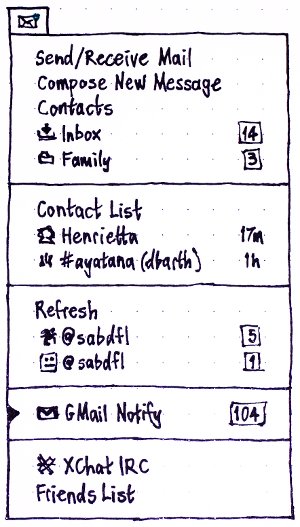
- Indicadores de sistema: No painel superior do Ubuntu, existem vários ícones que fornecem informações sobre o sistema, e até um que condensa informações e ações das aplicações de comunicação. A ideia para o Lucid Lynx é unificar e criar uma interface comum e consistente que permite agregar informações inteligentemente. Bem, uma imagem, mesmo que um mero rascunho, permite mostrar muito melhor o conceito:


- (Ainda) Mais melhoras nas notificações: As notificações do Ubuntu são cada vez mais um dos melhores sistemas de notificação atuais (quer visualmente quer em termos de facilidade de integração nas aplicações). Para o Lucid, as notificações estarão presentes com um novo modo, o modo “ocupado”. Por exemplo, se estiver vendo um filme em tela cheia, não será notificado de coisas triviais como email, mensagens de chat. Já avisos de bateria fraca ou de carga da bateria, esses sim, considerados "críticos" serão mostrados. Resta também esperar pela disponibilização de uma janela de configurações. Vamos esperar...
Projeto B-Sides: O projeto B-Sides é um projeto da comunidade que pretende facilitar a instalação de um leque de pacotes (codecs, utilitários, fontes, temas, Flash, aplicações multimédia, comunicação e de produtividade), que não estão incluídos no CD do Ubuntu, mas que são igualmente úteis e essenciais, complementando assim o sistema. Bastará instalar o pacote ‘b-sides’ e todas essas aplicações serão instaladas. Para mim que instalo várias vezes o Ubuntu, esta é uma fantástica novidade, que me permitirá poupar ainda mais tempo na instalação e substituir aquela enorme linha de comandos e colar no console. A lista completa de aplicações encontra-se aqui.

- Gnome 2.30: A versão 2.30 do ambiente gráfico Gnome trará melhoramentos gerais em todas as aplicações, incluindo o cliente de mensagens instantâneas Empathy, o gravador de disco Brasero, o leitor de documentos Evince (suporte a OCR, converter imagem em texto) e melhorias no visual dos ícones e no painel. A lista completa de objetivos, aqui.
- Linux Kernel 2.6.32: O Ubuntu 10.04 virá com a versão 2.6.32 do Linux Kernel, o que assegura maior estabilidade, maior rapidez e maior compatibilidade de hardware. Melhorias no gerenciamento de energia e na virtualização são também esperadas.
E são estas as grandes novidades do Ubuntu Lucid Lynx. Mais virão mais com o passar dos meses, e aqui no blog é certo que as mencionaremos. Se já quiser baixar o Ubuntu 10.04, vai ter que esperar até 29 de Abril, ou tentar o Beta (somente para os apressados!). Mas se nunca experimentou o Ubuntu, faça já o download do Ubuntu 9.10 Karmic Koala 
terça-feira, 22 de dezembro de 2009
Installing TTF FONTS in Ubuntu 9.10
After spending a few hours looking and trying out suggestions from various places on the Internet. An All User Install of TTF Fonts goes
like this:
sudo su
password
cd /usr/share/fonts/truetype
mkdir 500fonts
cd /home/user/Desktop/500fonts
cp -r *.TTF /usr/share/fonts/truetype/500fonts
exit
sudo fc-cache -fv (* note the space after the word cache)
password
after a few moments...
exit
exit
It looks at all the fonts in the Font Cache and re-installs them. So if you have a Windows Font CD of TTF Fonts, you can now use it in LINUX.
You can add the ones out of the list to the open office folder, in /usr/share/fonts/truetype/openoffice, and they should appear in
OpenOffice.
like this:
sudo su
password
cd /usr/share/fonts/truetype
mkdir 500fonts
cd /home/user/Desktop/500fonts
cp -r *.TTF /usr/share/fonts/truetype/500fonts
exit
sudo fc-cache -fv (* note the space after the word cache)
password
after a few moments...
exit
exit
It looks at all the fonts in the Font Cache and re-installs them. So if you have a Windows Font CD of TTF Fonts, you can now use it in LINUX.
You can add the ones out of the list to the open office folder, in /usr/share/fonts/truetype/openoffice, and they should appear in
OpenOffice.
quinta-feira, 3 de dezembro de 2009
Ubuntu 10.04 Starts for 10 Seconds
The growing adoption of the Linux operating system on netbook devices has compelled Linux distributors to focus on improving startup performance. Ubuntu 9.10, recently released, is one distribution where these improvements are particularly noticeable.
In a presentation at the Ubuntu Developer Summit in Barcelona, developer Scott James Remnant noted that boot time decreased from 65 seconds in version 8.10 to only 20 seconds in 9.10, codenamed Karmic Koala. This is already a substantial improvement, but he believes that there is still room for more aggressive optimization. Canonical, the company behind Ubuntu, will continue pushing the limits of boot performance. According to Remnant, the company aims to achieve a ten-second boot time next year for Ubuntu 10.04, the release that will follow after Karmic.
In a presentation at the Ubuntu Developer Summit in Barcelona, developer Scott James Remnant noted that boot time decreased from 65 seconds in version 8.10 to only 20 seconds in 9.10, codenamed Karmic Koala. This is already a substantial improvement, but he believes that there is still room for more aggressive optimization. Canonical, the company behind Ubuntu, will continue pushing the limits of boot performance. According to Remnant, the company aims to achieve a ten-second boot time next year for Ubuntu 10.04, the release that will follow after Karmic.
sexta-feira, 2 de outubro de 2009
Celestia 3D Space Simulation Software For Linux / Windows / OS X
Celestia is a real-time visual space simulation astronomy program. It is a cross platform, open source software and released under the GNU General Public License. NASA and ESA have used Celestia in their educational and for interfacing to trajectory analysis software. It allows users to travel through an extensive universe, modeled after reality, at any speed, in any direction and at any time in history. Celestia displays and interacts with objects ranging in scale from artificial satellites to entire galaxies in three dimensions using OpenGL. It is a perfect software for astronomer, educator, student, and teacher for astronomy purpose.

Features
- Celestia displays the Hipparcos Catalogue (HIP) of almost 120,000 stars.
- Solar and lunar eclipse finder.
- Display the orbital paths of planets (including extrasolar planets), dwarf planets, moons, asteroids, comets, artificial satellites, and spacecraft.
- Celestia users can travel/fly through the Celestia universe using simple keyboard controls, at any speed from 0.001m/s to millions of light years/s
Controls allow users to orbit stars, planets, moons and other space objects, track space objects such as spacecraft, asteroids and comets as they fly by, or travel to and/or fly through nebula and irregular, elliptical and spiral galaxies (over 10,000 galaxies included). - Celestia displays such features as detailed atmospheres on planets and moons, planet shine on orbiting satellites, sunsets and sunrises, moving clouds, planetary rings, eclipse and ring shadows etc.
- Graphic screen-shots and movies can be captured in classic or HD resolutions (up to 1920x1080) on Windows and Linux platforms.
Packages
You need to install the following packages:
- celestia - A real-time visual space simulation
- celestia-common - Datafiles for Celestia, a real-time visual space simulation
- celestia-glut - A real-time visual space simulation (GLUT frontend)
- celestia-gnome - A real-time visual space simulation (GNOME frontend)
- celestia-kde - A real-time visual space simulation (KDE frontend)
Install Celestia Under Debian / Ubuntu Linux
Type the following commands:sudo apt-get update
sudo apt-get install celestia-gnome celestia
How do I start Celestia?
Type the following command at a console (terminal):$ celestia-gnome &
Alternatively, you can start Celestia in the following ways:
- Applications menu
- Choose Education > Celestia

Fig.01: Celestia displaying earth
Celestia Mouse, Keyboard and Joystick Controls
Celestia allows you to zoom in / out and rotate various objects from star to spacecraft using a mouse. It has "point and goto" interface which allows you to navigate through our universe.
| Mouse Controls | Description |
|---|---|
| Left Drag | Camera orientation--Up/Down/Left/Right (also Up & Down arrow key) |
| Shift+Left Dbl Click on an object | Deselect and Center selected object |
| Left Click on no object | Deselect currently selected object |
| Right Click on an object | Display object context menu if it has one |
| Scroll Wheel or Ctrl+Left Drag or Ctrl+Left Drag Left+Right Drag up/down | Distance to selection adjust. (Home/End) |
To see complet list press CTRL+H.
How do I view demo?
To view the demo click on Help menu > Demo.
Further readings:
- Official project website
- Celestia motherlode collection of add-ons made by various people
- Celestia from Wikipedia, the free encyclopedia.
(Image credit: Wikipedia)
segunda-feira, 21 de setembro de 2009
[video] Mark Shuttleworth Anuncia o Ubuntu 10.04: Lucid Lynx
quinta-feira, 10 de setembro de 2009
Kuki: distribuição Linux sob medida para netbooks Acer Aspire One, baseada no Ubuntu
Trecho da notícia do iG Tecnologia:
(…) Baseado no Ubuntu, o Kuki Linux 2.8 é um sistema leve, com uma seleção otimizada de aplicativos peso-pena. Entre eles, o navegador web Midori, o mensageiro instantâneo Pidgin, o cliente de e-mail Claws, o Deluge, para baixar arquivos por BitTorrent, e o calendário/organizador pessoal Orage. O ambiente de usuário escolhido, pelo seu baixo consumo de memória, foi o XFCE 4.6.1, com um tema personalizado. O XFCE é bastante modificável para ficar semelhante tanto ao Windows como ao Mac OS X. A idéia dos desenvolvedores é dar ao usuário o máximo de recursos, com o menor consumo possível de memória e poder de processamento.

O suporte ao hardware específico do Aspire One também recebeu atenção: itens como controle do ventilador para dissipação de calor, gerenciamento de energia, drivers de vídeo, do modem 3G e leitores de cartões de memória vem pré-configurados.
O Kuki Linux 2.8 pode ser baixado gratuitamente no site oficial, na forma de um arquivo ISO de 399 MB. O arquivo pode ser gravado em CD ou em um pendrive, e usado para instalação ou para uma sessão “Live CD”, que permite experimentar o sistema sem instalá-lo na máquina. Segundo os desenvolvedores, usuários novatos poderão encontrar suporte na forma de salas de bate-papo, fóruns de discussão e tutoriais em vídeo no site oficial. (via tecnologia.ig.com.br)
sexta-feira, 24 de abril de 2009
Ubuntu Linux 9.04 - Download CD/DVD
Ubuntu Linux 9.04 has been released and available for download. Ubuntu Linux is a community-based Linux distribution. The latest release of Ubuntu brings the best open source technologies together on one platform, with the benefit of free updates for 18 months. Also announced were the simultaneous releases of Ubuntu 9.04 Server Edition and Ubuntu 9.04 Netbook Remix (UNR).
From the website:
Ubuntu 9.04 Desktop Edition delivers a range of feature enhancements to improve the user experience. Shorter boot speeds, some as short as 25 seconds, ensure faster access to a full computing environment on most desktop, laptop and netbook models. Enhanced suspend-and-resume features also give users more time between charges along with immediate access after hibernation. Intelligent switching between Wi-Fi and 3G environments has been broadened to support more wireless devices and 3G cards, resulting in a smoother experience for most users.
What's new in Ubuntu 9.04
* Ubuntu 9.04 includes the latest GNOME 2.26 desktop environment.
* Brasero is now the default disc burning utility in Nautilus.
* The latest X.Org server, version 1.6, is available in Jaunty. The latest Mesa 3D DRI, version 7.4, is also available.
* Included in Jaunty is a simple menu which can be used to set preferences for notification icons, such as where they pop up on the taskbar.
* A number of improvements to the Ubuntu start-up process bring significantly improved boot performance to Ubuntu 9.04.
* Linux kernel 2.6.28.
* Ext4 filesystem support.
Ubuntu 9.04 Download
You can download Ubuntu Linux 9.04 via the web/ftp server or via BitTorrent (recommended).
32 bit vs 64 bit version
* For almost all PCs select 32 bit version. For e.g., most machines with Intel/AMD/etc type processors and almost all computers that run Microsoft Windows, as well as newer Apple Macintosh systems based on Intel processors.
* Choose 64 bit version to take full advantage of computers based on the AMD64 or EM64T architecture (e.g., Athlon64, Opteron, EM64T Xeon, Core 2). If you have a non-64-bit processor made by AMD, or if you need full support for 32-bit code, use the Intel x86 images instead.
Ubuntu 9.04 Desktop DVD ISO download
* Visit mirror to download Ubuntu ISO image 32 bit i386 DVD ISO (4.2 GB)
* Visit mirror to download Ubuntu ISO images 64 bit DVD ISO (4.3 GB)
Ubuntu download: Ubuntu 9.04 Desktop CD ISO download
* Download Ubuntu Linux Desktop 9.04 CD 32 bit i386 (697M)
* Download Ubuntu Linux Desktop 9.04 CD 64 bit (697M)
Ubuntu Linux 9.04 DVD ISO BitTorrent download
Ubuntu Desktop 9.04 DVD ISO BitTorrent download
* Download from BitTorrent i386 32 bit Desktop DVD (requires a BitTorrent client)
* Download from BitTorrent 64 bit Desktop DVD (requires a BitTorrent client)
Ubuntu Server 9.04 DVD ISO BitTorrent download
* Download from BitTorrent i386 32 bit DVD (requires a BitTorrent client)
* Download from BitTorrent 64 bit DVD (requires a BitTorrent client)
Ubuntu download: Ubuntu 9.04 Server CD ISO download
* Download server install CD 32 bit ISO (637M)
* Download server install CD 64 bit ISO (653M)
Upgrading Ubuntu Linux using the Network ( Internet )
* Please see step-by-step Ubuntu Linux 9.04 server upgrade and desktop upgrade FAQ / tutorial.
From the website:
Ubuntu 9.04 Desktop Edition delivers a range of feature enhancements to improve the user experience. Shorter boot speeds, some as short as 25 seconds, ensure faster access to a full computing environment on most desktop, laptop and netbook models. Enhanced suspend-and-resume features also give users more time between charges along with immediate access after hibernation. Intelligent switching between Wi-Fi and 3G environments has been broadened to support more wireless devices and 3G cards, resulting in a smoother experience for most users.
What's new in Ubuntu 9.04
* Ubuntu 9.04 includes the latest GNOME 2.26 desktop environment.
* Brasero is now the default disc burning utility in Nautilus.
* The latest X.Org server, version 1.6, is available in Jaunty. The latest Mesa 3D DRI, version 7.4, is also available.
* Included in Jaunty is a simple menu which can be used to set preferences for notification icons, such as where they pop up on the taskbar.
* A number of improvements to the Ubuntu start-up process bring significantly improved boot performance to Ubuntu 9.04.
* Linux kernel 2.6.28.
* Ext4 filesystem support.
Ubuntu 9.04 Download
You can download Ubuntu Linux 9.04 via the web/ftp server or via BitTorrent (recommended).
32 bit vs 64 bit version
* For almost all PCs select 32 bit version. For e.g., most machines with Intel/AMD/etc type processors and almost all computers that run Microsoft Windows, as well as newer Apple Macintosh systems based on Intel processors.
* Choose 64 bit version to take full advantage of computers based on the AMD64 or EM64T architecture (e.g., Athlon64, Opteron, EM64T Xeon, Core 2). If you have a non-64-bit processor made by AMD, or if you need full support for 32-bit code, use the Intel x86 images instead.
Ubuntu 9.04 Desktop DVD ISO download
* Visit mirror to download Ubuntu ISO image 32 bit i386 DVD ISO (4.2 GB)
* Visit mirror to download Ubuntu ISO images 64 bit DVD ISO (4.3 GB)
Ubuntu download: Ubuntu 9.04 Desktop CD ISO download
* Download Ubuntu Linux Desktop 9.04 CD 32 bit i386 (697M)
* Download Ubuntu Linux Desktop 9.04 CD 64 bit (697M)
Ubuntu Linux 9.04 DVD ISO BitTorrent download
Ubuntu Desktop 9.04 DVD ISO BitTorrent download
* Download from BitTorrent i386 32 bit Desktop DVD (requires a BitTorrent client)
* Download from BitTorrent 64 bit Desktop DVD (requires a BitTorrent client)
Ubuntu Server 9.04 DVD ISO BitTorrent download
* Download from BitTorrent i386 32 bit DVD (requires a BitTorrent client)
* Download from BitTorrent 64 bit DVD (requires a BitTorrent client)
Ubuntu download: Ubuntu 9.04 Server CD ISO download
* Download server install CD 32 bit ISO (637M)
* Download server install CD 64 bit ISO (653M)
Upgrading Ubuntu Linux using the Network ( Internet )
* Please see step-by-step Ubuntu Linux 9.04 server upgrade and desktop upgrade FAQ / tutorial.
Assinar:
Postagens (Atom)

